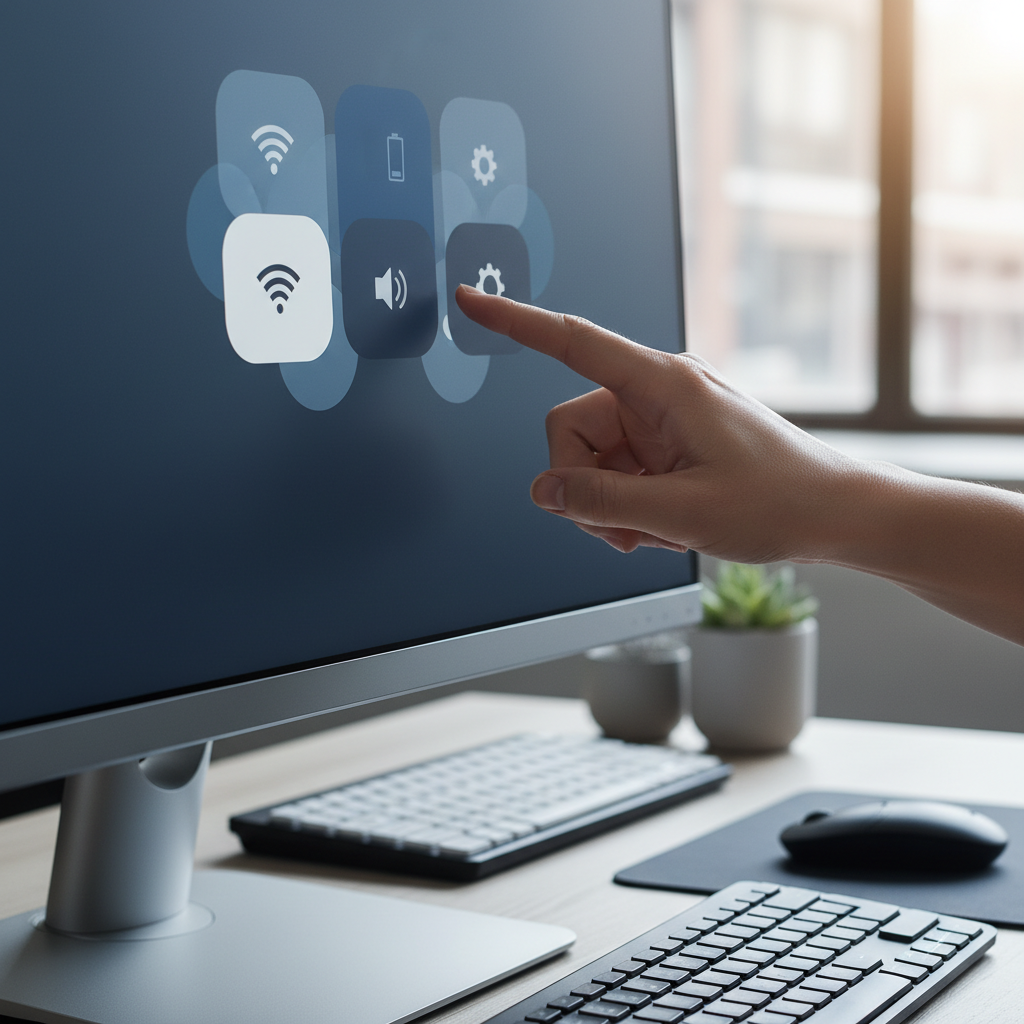
Tired of fumbling with physical monitor buttons or digging through endless Windows settings just to adjust your screen? We’ve all been there. Thankfully, there’s exciting news for desktop PC and laptop users: a new tool within Microsoft PowerToys now allows you to control your monitor’s settings directly from your taskbar.
This fantastic quality-of-life improvement, introduced in PowerToys version 0.99.1, simplifies display management significantly. Say goodbye to guesswork and hello to instant, convenient control right from your system tray. Let’s dive into how this new feature, alongside other PowerToys perks, can streamline your Windows experience.
Introducing Power Display: Your Monitor, Your Way
The star of the latest PowerToys update is a brand-new module called Power Display. Once enabled, this intelligent tool automatically detects your connected monitors, whether desktop or laptop, and surfaces supported screen settings via a discrete icon in your system tray. It’s a game-changer for anyone who frequently tweaks their display.
While the exact controls available will vary depending on your specific monitor’s capabilities, you can expect a minimum of brightness adjustment via a handy slider. Many users will also find options to fine-tune contrast, color temperature, rotation, and even volume control for integrated speakers. What’s more, Power Display truly shines for multi-monitor setups, allowing you to manage individual slider settings for each screen separately.
Getting started is easy. If you already have PowerToys installed on Windows 10 or 11, simply open the application and check for updates. New to PowerToys? Head over to its Microsoft Store page or the official GitHub page to download and install the latest version.
Once installed or updated, navigate to the Power Display settings page within PowerToys to enable or disable the tool. Here, you can customize your experience further by changing the activation shortcut, creating and saving custom display profiles, and selecting precisely which settings you want to see and access from the taskbar icon. This level of personalization ensures your display controls are always exactly how you need them.
Grab and Move: Effortless Window Management
Beyond monitor controls, the latest PowerToys update also introduces another valuable tool: Grab And Move. This feature addresses common frustrations with moving and resizing windows, especially on larger displays or when windows drift off-screen. No more struggling to grab tiny title bars or meticulously positioning your mouse to the perfect window edge!
With Grab And Move enabled, you can effortlessly manipulate windows by pressing an activation key and clicking anywhere on the window itself. By default, holding down the Alt key and clicking the left mouse button lets you drag and reposition a window across your screen. Similarly, holding down the Alt key and clicking the right mouse button allows you to resize the window, whether horizontally, vertically, or diagonally, with remarkable ease.
The Grab And Move settings page offers further customization. You can change the default Alt activation key to the Windows key, prevent the tool from running when Game Mode is active, and even exclude specific applications from being affected by this new behavior. Microsoft specifically highlights Grab And Move as a boon for users with large monitors or for those pesky windows that mysteriously wander off-screen.
Enhanced Existing Tools and More
PowerToys v0.99.1 isn’t just about new features; it also brings valuable enhancements to several existing tools. The Command Palette, a quick launcher for Windows commands and features, now allows you to pin your favorite commands for even faster access. The Keyboard Manager Editor, which lets you remap keys, has been refined to make editing recorded key assignments more intuitive than ever.
Additionally, the popular ZoomIt tool, known for its screenshot capabilities, now supports scrolling screenshots. This means you can capture lengthy web pages or documents in a single image, eliminating the need for multiple captures and stitching. For a comprehensive look at all the new and enhanced features in this PowerToys release, be sure to visit the official GitHub release page.
Source: ZDNet – AI
