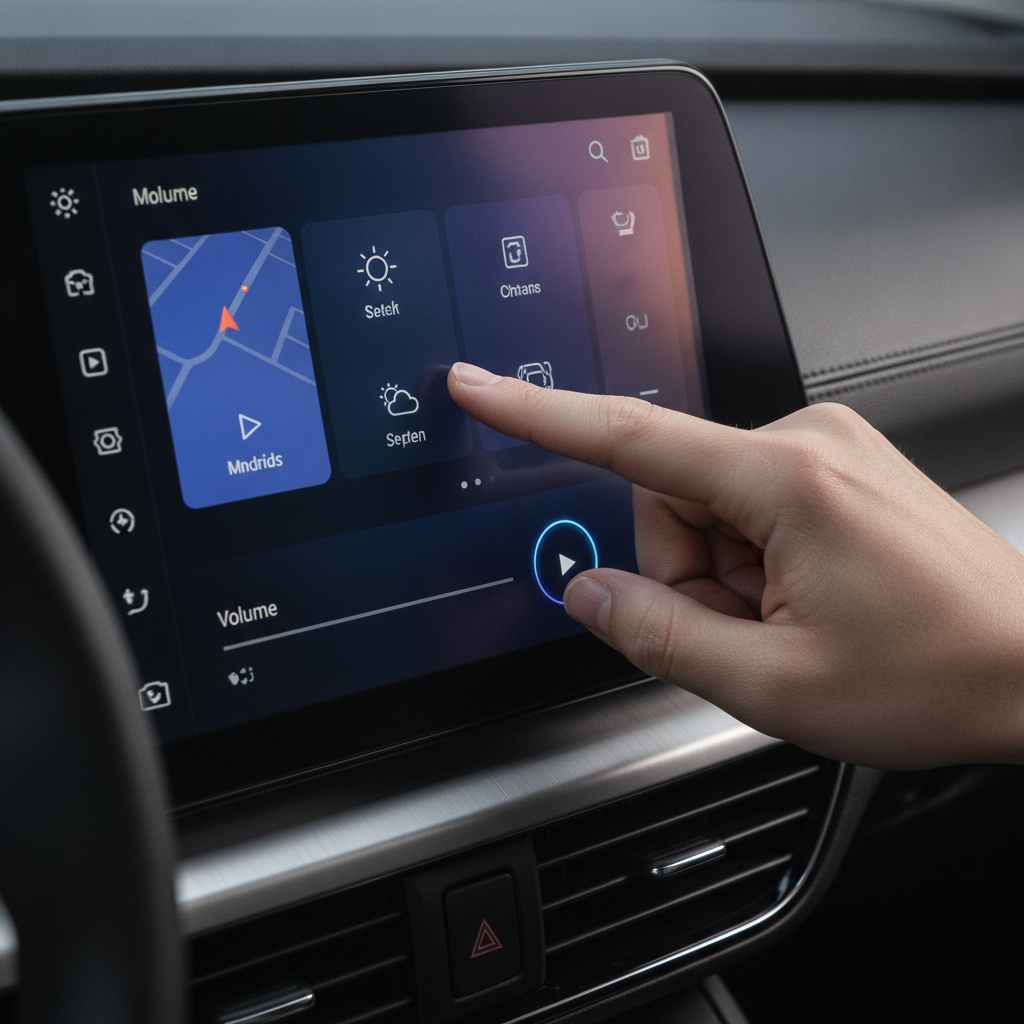
Android Auto is an incredible companion for your car, designed to streamline your driving experience with easy access to navigation, music, and communication. However, if you’re using it with its default settings, there’s a good chance you’re missing out on its full potential. A few quick adjustments can dramatically improve how Android Auto works for you, making your daily commute or road trips smoother and more enjoyable.
The beauty of Android Auto lies in its customizability, allowing you to fine-tune its operation and interface to perfectly suit your preferences. Even if you’re not a tech enthusiast, there are a handful of essential settings that come enabled by default which might actually be hindering your experience. Let’s dive into four crucial changes you should make right away to unlock a more intuitive and less distracting drive.
Reclaiming Your Audio Experience: Stop Automatic Media Playback
One of Android Auto’s most convenient, yet potentially annoying, default features is its automatic media playback. Every time you start your car, it picks up exactly where your last podcast or high-energy playlist left off. While this might seem helpful, it can often lead to jarring audio blasts before you’ve even backed out of the driveway.
This setting becomes particularly problematic if you share your vehicle with family members, or if kids frequently hop in and out. Imagine a sudden, loud track blaring unexpectedly, or a private podcast segment playing for unintended ears. Thankfully, this is an easy fix that ensures you regain control of your car’s audio environment from the moment you turn the key.
To disable this, simply open your phone’s main settings app and search for “Android Auto.” Within the Android Auto settings, you’ll find an option labeled “Start music automatically” – toggle this feature off. Don’t worry, restarting your media is always just a simple tap away on your car’s display, giving you a more controlled and pleasant start to every journey.
Taming Notifications: Prioritize Focus, Not Distraction
Driving safely means minimizing distractions, and Android Auto’s default notification settings can sometimes work against this principle. By default, incoming text messages display a preview of their content on your car screen. This can be a significant privacy concern if you have passengers, and it often obscures important navigation instructions or other critical information on your display.
Furthermore, rapid-fire group conversations can be incredibly disruptive. If you’ve ever been part of an active group chat, you know how quickly notifications can pile up, constantly interrupting your music or podcasts. While staying connected is important, constantly being bombarded by alerts on the road is neither safe nor pleasant.
To gain better control, navigate to your Android Auto settings on your phone. Here, you’ll want to adjust several options:
- Disable “Show message previews” to keep your incoming texts private and your screen clear.
- Turn off “Show group conversations” to avoid constant interruptions from chatty groups.
- If you prefer an even quieter drive, consider muting the notification chime by turning off “Play message chime.” You’ll still see a subtle notification banner, but your media will play uninterrupted, allowing you to focus on the road ahead.
Declutter Your Dashboard: Customize Your App Launcher
When you first connect your phone, Android Auto’s app launcher often presents a seemingly endless scroll of compatible applications. This includes apps you rarely use, services you tried once, or messaging platforms you don’t typically access in the car. This visual clutter can make it harder to quickly find the apps you actually need, adding unnecessary cognitive load while driving.
A streamlined, minimalist interface is key to a distraction-free driving experience. By customizing your app launcher, you can ensure that only your most frequently used and essential apps are immediately visible. This doesn’t remove the apps from your phone; it simply cleans up your car’s display, making it much more efficient and user-friendly.
To customize your launcher, open your phone’s Android Auto settings and tap on “Customize launcher.” From there, you’ll be able to easily deselect the apps you don’t want to see and rearrange the ones you do. This simple tweak drastically improves the usability of your in-car display, allowing you to access what you need without sifting through digital clutter.
Power Up Your Taskbar: Enable Dynamic Widgets
By default, Android Auto often populates the bottom taskbar with icons for your most recently used applications. While this offers a quick way to switch between apps, it’s not the most efficient use of this prime screen real estate. There’s a far more powerful and dynamic option waiting to be activated: taskbar widgets.
Enabling taskbar widgets transforms these static icons into intelligent, context-aware quick controls that adapt to your current activity. Imagine having media playback controls appear automatically when you’re listening to music, or quick navigation shortcuts showing your next turn and route information when you’re on a journey. These dynamic shortcuts provide immediate access to the most relevant functions, precisely when you need them.
This feature significantly enhances convenience and reduces the need to dive into menus while driving. To activate this game-changing functionality, look for the option to “Turn on taskbar widgets” within your Android Auto settings. Making this small change will instantly elevate your interaction with Android Auto, making your driving experience safer, smarter, and considerably more intuitive.
Source: ZDNet – AI
