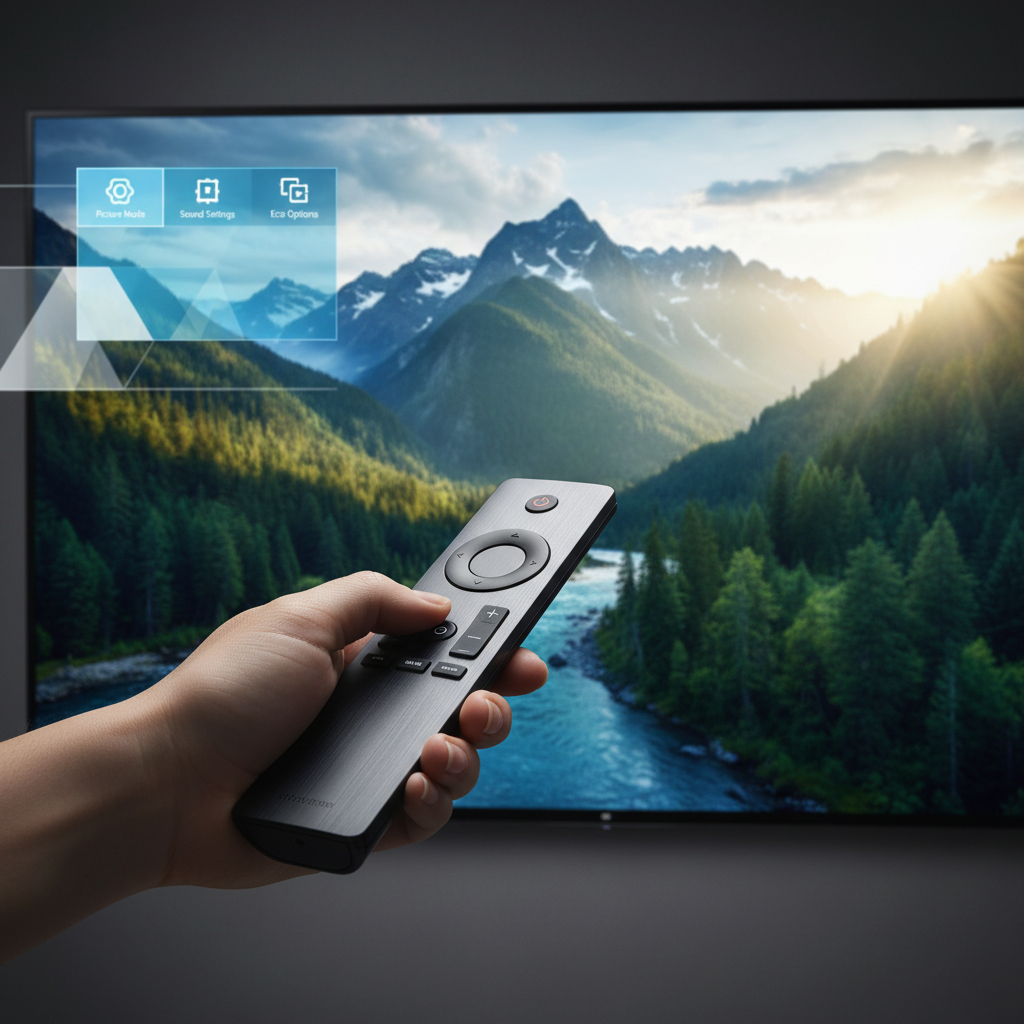
Your new Hisense TV often delivers a fantastic picture right out of the box, but imagine what it could do with a little expert fine-tuning. Unlocking its full potential is simpler than you might think, involving just a few quick adjustments in the settings menu. By tweaking these options, you can elevate your viewing experience, making movies more cinematic, sports more vibrant, and games more immersive.
Hisense TVs offer a surprisingly comprehensive range of picture settings, allowing you to tailor everything from basic brightness and contrast to advanced color space adjustments. Whether you’re a casual viewer or a dedicated enthusiast, there’s a setting for you. Best of all, these changes can be applied universally or customized for individual inputs, giving you ultimate flexibility.
Don’t worry about making a wrong move; the settings menu features a convenient reset button at the bottom of the picture options. This allows you to revert to factory defaults at any time, giving you the freedom to experiment without fear. Let’s dive in and discover how to noticeably improve your Hisense TV’s picture quality, ensuring you get the most out of your screen.
Unlocking Your Hisense TV’s Best Picture with Presets
For those who prefer a straightforward approach, Hisense TVs come equipped with a variety of “set and forget” picture mode presets. These modes offer optimized settings for different types of content, making it easy to switch between your favorite shows, movies, or games. Each preset adjusts brightness, contrast, color processing, and even refresh rates to suit specific media.
You’ll find seven primary picture mode presets: Standard, Sports, Energy Saving, Theater Night, Theater Day, Filmmaker, and Vivid. For instance, “Sports” mode often boosts motion smoothness and color saturation, while “Theater Night” aims for a darker, more cinematic feel. Choosing the right preset is your first step towards a better picture.
To further enhance these presets, you can toggle on additional smart features that automatically detect the content you’re watching. By enabling options like Automatic Content Recognition, your Hisense TV can intelligently switch picture modes and optimize settings. This ensures smooth motion, clear details, and bold colors without you ever needing to touch the remote.
Tailoring Settings for Your Viewing Habits
While presets offer convenience, making a few specific tweaks can truly transform your Hisense TV’s performance. Different content types benefit from different optimizations, allowing you to fine-tune your display for an unparalleled viewing experience. Let’s explore some key adjustments for streaming, live TV, and gaming.
For Streaming & Cinematic Excellence:
If you’re primarily using your Hisense TV for streaming movies and TV shows, aiming for a cinema-quality picture is key. The Filmmaker Mode preset is an excellent starting point, designed to preserve the creator’s original artistic intent by disabling motion smoothing and maintaining accurate colors. However, some find this mode a bit too dark for typical living room environments.
To enhance the cinematic experience without sacrificing detail, consider these adjustments:
- Start with Filmmaker Mode or Theater Night.
- Gently increase the Brightness to around 50, or to a level that feels comfortable in your room’s ambient light.
- Adjust Local Dimming from “Low” to “Medium”. This helps improve contrast in darker scenes, allowing you to see more detail without crushing blacks.
These minor changes can make a significant difference in delivering a richer, more immersive visual experience for all your streaming content.
For Gaming:
Hisense TVs are fantastic for gaming, offering vibrant visuals and responsive performance. While there isn’t a dedicated “Gaming Mode” preset, you can easily create your own optimized setup. This custom mode will ensure your games look stunning and feel incredibly fluid, regardless of genre.
Follow these steps to craft your ideal gaming picture mode:
- Select the Vivid picture mode as your base. This mode typically offers bright, bold colors that complement a wide variety of game art styles.
- Increase Black Levels slightly to boost contrast and make characters and points of interest pop against backgrounds.
- Enable Dark Detail to further enhance visibility in shadowy areas without making the overall image too bright.
Remember to check your TV’s input lag settings, often found under “Advanced Picture” or “Input Settings,” and enable any available “Game Mode” or “Low Latency Mode” to minimize input delay for the most responsive gameplay.
Diving Deeper: Advanced Picture Calibration
For the truly dedicated enthusiast, Hisense TVs offer a suite of advanced calibration settings to fine-tune every aspect of the picture. Navigate to Settings > Picture, then scroll all the way down to find the Picture Calibration Settings option. This is where you can unlock granular control over your display.
Within this menu, you’ll find sliders to precisely adjust white balance, ensuring accurate color temperature across the entire screen. You can also independently modify the hue and saturation of individual colors, allowing for highly specific color correction. These tools give you the power to achieve professional-grade color accuracy.
For those seeking the pinnacle of picture quality, Hisense TVs also include options for a 20-point gamma calibration test and even Calman calibration. Be aware, however, that these advanced tests require specialized professional equipment, such as colorimeters and pattern generators, to properly measure and adjust your TV’s picture quality. While powerful, they are typically recommended for professional calibrators.
Experimenting with your Hisense TV’s picture settings is a rewarding way to enhance your viewing pleasure. From simple preset changes to detailed calibration, there’s a path for every user to achieve their ideal picture. Take the time to explore these options, and you’ll soon be enjoying an even more impressive visual experience from your Hisense display.
Source: ZDNet – AI
