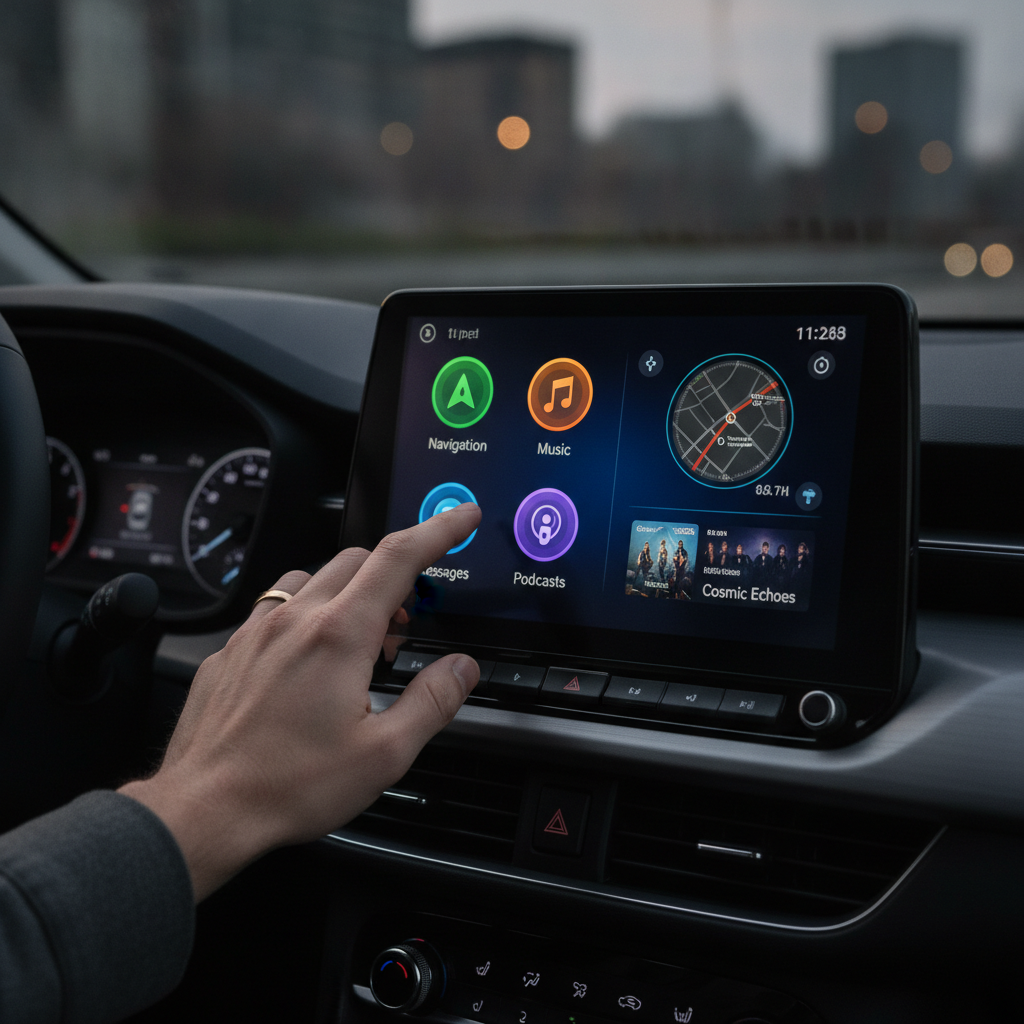
Android Auto has revolutionized how we interact with our smartphones on the road, transforming mundane commutes into more connected and convenient journeys. While its core features like navigation and media playback are well-known, many drivers might not realize the extensive customization options available. With a few simple tweaks, you can truly make Android Auto your own, enhancing both its utility and your overall driving experience.
These powerful customization settings allow you to fine-tune everything from the interface’s appearance to how notifications are handled and even automate complex tasks. Whether you’re looking to declutter your screen, prioritize essential apps, or set up smart routines, Android Auto offers a surprising level of control. Let’s dive into some practical tricks you can try today to personalize your in-car system.
Tailor Your Android Auto Experience
One of the most immediate ways to personalize your Android Auto interface is by organizing your app launcher. Tired of endlessly scrolling past apps you never use? You can easily prioritize your favorites and remove unnecessary clutter, making it quicker and safer to access what you need while driving.
- To begin, navigate to your phone’s Settings, then search for Android Auto and select Customize Launcher.
- Here, you’ll find options to check or uncheck which apps appear on your car’s screen, and you can even set a custom order instead of the default alphabetical arrangement.
Visual comfort is key, especially when you’re focusing on the road. Android Auto typically adjusts its display mode based on the time of day, ambient light, or even your vehicle’s headlights. However, if you have a strong preference for a consistent look, you can easily override this automatic behavior.
You have the flexibility to toggle Android Auto’s day/night mode to your liking. Choose either “Day” or “Night” for a permanent setting, or select “Phone controlled” to align it with your smartphone’s display preferences. This ensures your screen’s brightness and color scheme are always exactly how you prefer them, regardless of external conditions.
Beyond app order and display modes, you can also inject some personality directly into your Android Auto background. If you’re bored with the standard geometric patterns, consider mirroring your phone’s home screen wallpaper onto your car’s display. This simple change can make your in-car system feel much more like a natural extension of your personal device.
This setting can sometimes be found within the “Display” section of your phone’s Android Auto settings or directly on your car’s screen. Once enabled, Android Auto will automatically grab your phone’s current background image. Just remember, this feature works best with static wallpapers and typically doesn’t support live or animated designs.
Enhance Functionality and Safety
Android Auto goes far beyond just displaying apps; it allows for powerful automation through routines and shortcuts that can truly transform your daily drives. Imagine setting up a single command to manage multiple tasks as you approach home or leave for work. This level of smart integration makes your car a more intelligent companion.
You can add shortcuts directly to your launcher that call a specific contact, send a pre-written text message, or even run complex Gemini commands. For instance, a “Leaving Home” shortcut could simultaneously run your robot vacuum, adjust your smart thermostat, lock doors, and turn off lights, all triggered with a simple tap.
Staying connected is important, but excessive notifications can be a major distraction behind the wheel. Android Auto offers an impressive level of control over how you receive and interact with messages, allowing you to minimize interruptions without missing crucial information. It’s all about striking the right balance for a safer drive.
Within the Android Auto app settings, you can customize everything from whether text notifications appear at all, to hiding group conversations, or even displaying just the first line of a message. You can also decide if a chime plays, whether Gemini can process your messages, and if Gemini should summarize longer texts for easier consumption on the go.
Fine-Tune Your Drive
The layout of your in-car display can significantly impact usability, and Android Auto provides options to adjust elements for optimal ergonomics. Depending on your vehicle’s setup and your personal preferences, you might find certain controls more convenient on one side of the screen than the other. This small adjustment can make a big difference in daily interaction.
In the “Advanced” section of your Android Auto app settings, you’ll find a toggle to position media controls closer to you or closer to navigation information. While navigation controls typically default to the driver’s side, you can easily move them to better suit your preferred setup, ensuring that frequently used functions are always within easy reach.
The immediate auto-start of media upon connecting your phone to Android Auto is a feature that often sparks debate among users. For some, it’s a convenient way to instantly pick up where they left off with a podcast or playlist. For others, it can lead to frantic fumbling to pause unwanted audio, especially with passengers onboard.
Thankfully, you have complete control over this behavior. By navigating to your Android Auto settings, you can simply toggle the “Start music automatically” option on or off. This allows you to decide whether your audio begins playing as soon as you start your car or if you prefer to manually initiate playback, providing a more predictable and tailored experience.
As you can see, Android Auto is far more than just a mirrored display for your phone; it’s a highly adaptable platform designed to integrate seamlessly into your driving life. By leveraging these customization tricks, you can transform your in-car system from a generic interface into a personalized command center. A few minutes spent in the settings can lead to a significantly more enjoyable, less distracting, and ultimately safer driving experience.
So go ahead, experiment with these settings and discover how truly unique and powerful your Android Auto can become. Whether it’s streamlining your apps, automating tasks, or simply making the interface more visually appealing, personalizing your system is a smart way to get the most out of your smart car features. Happy customizing!
Source: ZDNet – AI
