As dedicated Linux users, we’re always excited to see new applications that help our favorite operating system keep pace with the competition. In the rapidly evolving world of artificial intelligence, finding powerful open-source options for Linux is becoming increasingly common. I’ve personally enjoyed using applications like Alpaca and Moose, which provide excellent graphical user interfaces for my locally installed Ollama instances.
These existing tools offer intuitive designs, the flexibility to operate both locally and via cloud services, and are remarkably efficient with system resources. However, there’s always a pull to explore more mainstream options, especially when they promise advanced features and broader community support. This curiosity led me to the much-anticipated official Claude Code Linux desktop app.
The new Claude Code app for Linux boasts all the capabilities found in its MacOS and Windows counterparts, even allowing users to unlock developer options for expanded functionality. But before diving deep, it’s crucial to understand my primary preference: I almost exclusively use AI locally. My machines are typically set up with Ollama, a choice driven by concerns for privacy and a desire to minimize my contribution to the global power grid.
Local AI offers significant advantages, providing a more secure and resource-efficient way to interact with powerful language models. While I remain committed to local solutions, I was eager to test the Claude Code Linux desktop app to see how it stacked up against my established local AI workflow and other open-source alternatives. Could it integrate seamlessly into a local-first setup, or would it push users towards cloud dependency?
Installing Claude Code: A Few Extra Steps
Getting started with many GUI AI applications on Linux is often as simple as searching your distribution’s app store and clicking install. With tools like Alpaca or Moose, this is typically the straightforward path. However, installing the Claude Code Linux desktop app required a few additional steps that might be unfamiliar to some users.
Currently, the desktop version of Claude Code is primarily supported on Debian and Ubuntu-based distributions, which is an important consideration for users on other Linux flavors. The installation process involves adding Anthropic’s signing key and repository to your system before you can install the application itself. This method is standard for certain software, but it does add a layer of complexity compared to a simple app store download.
Here’s a quick overview of the commands I used to get Claude Code up and running:
- Add Anthropic’s signing key:
sudo curl -fsSLo /usr/share/keyrings/claude-desktop-archive-keyring.asc https://downloads.claude.ai/claude-desktop/key.asc - Add the repository:
echo "deb [arch=amd64,arm64 signed-by=/usr/share/keyrings/claude-desktop-archive-keyring.asc] https://downloads.claude.ai/claude-desktop/apt/stable stable main" | sudo tee /etc/apt/sources.list.d/claude-desktop.list - Update and install:
sudo apt update && sudo apt install claude-desktop
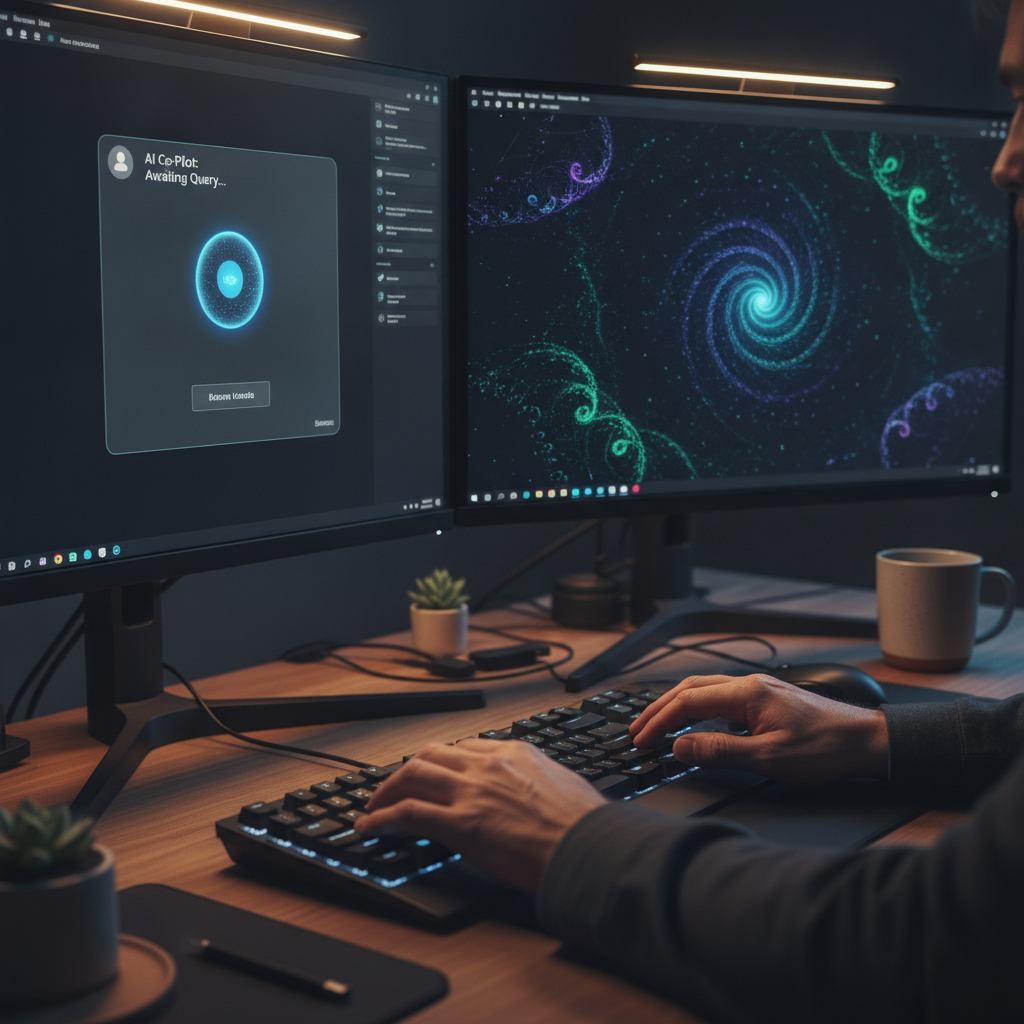
Once the installation was complete, I launched the Claude Code app from my desktop menu. I was immediately greeted by a sleek, well-designed graphical user interface. This initial impression was positive, suggesting a polished user experience on par with its non-Linux counterparts.
The Challenge: Integrating Local AI Models
My primary goal with the Claude Code Linux app was to integrate it with my existing local AI setup. This is where the journey became unexpectedly complicated. While I have considerable experience configuring local AI for various desktop clients, connecting Claude Code proved to be a significant hurdle, far from the ease of Alpaca or Moose.
To even begin exploring local models, I first had to install Claude Code from within Ollama itself using the ollama launch claude command. This crucial step allowed me to select and download a large language model (LLM) for use with Claude Code. I opted for the Qwen6 LLM, a substantial 15 GB download, which highlights the storage commitment required for powerful local models.
After acquiring the model, the next step involved navigating to the app’s developer options by going to Help > Troubleshooting > Enable Developer Options. A relaunch of the app revealed a new “Developer” menu, where I could access “Configure third-party inference.” This is the section where settings for local gateways and AI models should ideally be configured, leading me to believe I was on the right track.
Despite carefully entering my local gateway base URL and attempting to configure the settings to recognize my pulled models, the Claude Code desktop app simply refused to comply. No matter how I adjusted the settings or what troubleshooting steps I took, the application wouldn’t detect any of my locally installed Ollama models. This left me stranded, unable to leverage the power of my private, local AI setup.
Ultimately, this meant I was stuck using a free Anthropic cloud plan, which offers very limited capabilities, especially for resource-intensive tasks like generating application code. The inability to reliably connect the Claude Code desktop app with local AI was a significant disappointment, undermining its potential for users who prioritize privacy and local processing.
Performance and Final Thoughts
Although my core objective of integrating local AI was not met, I did take the opportunity to compare the Claude Code Linux app’s features against its MacOS counterpart. I found them to be functionally identical, with the same feature set and only minor UI variations. This parity is good news for users who rely on the Anthropic cloud service and want a consistent experience across platforms.
When tasked with a query – for instance, asking it to write a Linux GUI app for invoice creation – the free cloud account performed without impacting my system resources. In contrast, running a similar query on a local AI desktop app that does function with local models would often bring my machine to a temporary halt, demonstrating the resource demands of true local processing. This stark difference underscores the core issue: Claude Code, in its current Linux desktop iteration, primarily acts as a cloud client, not a local AI powerhouse.
In conclusion, while I was disappointed by the inability to connect the Claude Code desktop app to my local Ollama instance, it still serves a valuable purpose for a specific user base. If you’re an Anthropic subscriber looking for a user-friendly and streamlined way to access Claude Code directly from your Linux desktop, this application is an excellent choice. It offers simplicity and a polished interface that might appeal to those who don’t want to mess with command-line installations or ollama launch commands.
However, for dedicated Linux users who prioritize local AI for privacy and resource control, I would still recommend sticking with established alternatives like Alpaca or Moose. These applications reliably integrate with local Ollama instances, offering the true freedom and power of AI running directly on your machine. Choose wisely based on your AI workflow and preferences.
Source: ZDNet – AI
