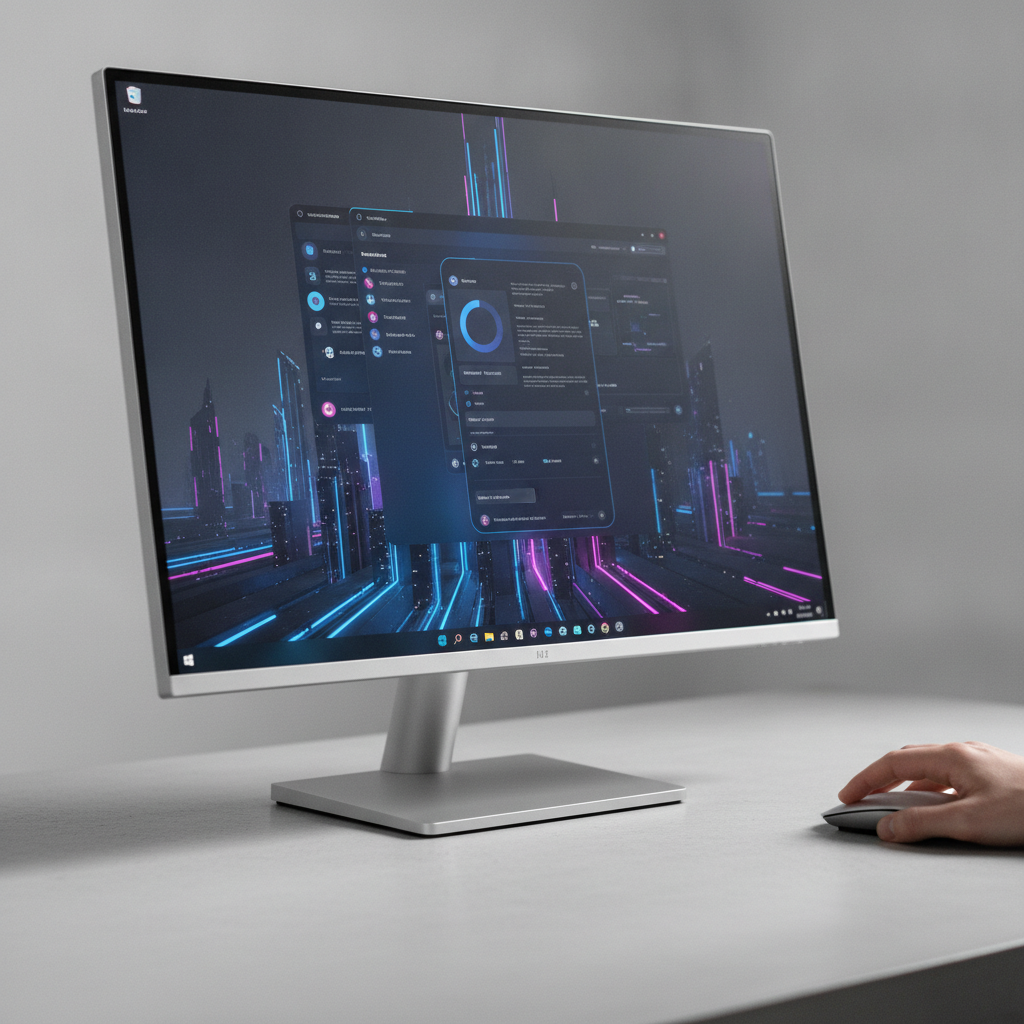
Ever wished your Linux desktop could sport the sleek, modern aesthetic of Windows 11, without actually switching operating systems? Good news, Zorin OS makes this surprisingly simple, and even better, you can achieve a very convincing imitation for free! Zorin OS, built on the solid foundation of Ubuntu, is renowned for its user-friendliness and remarkable customization options, especially when it comes to the desktop environment.
While the free version of Zorin OS offers several attractive layouts out of the box, none perfectly mirror Windows 11. The paid Pro version does include a dedicated Windows 11 layout, but it comes with a catch: you need to purchase a new license with each major OS upgrade. If you enjoy staying current with the latest releases, those $47.99 upgrade costs can add up.
Why Zorin OS is a Fantastic Choice (and the Pro vs. Free Dilemma)
Zorin OS has long been a favorite among those looking for a smooth transition from Windows to Linux. Its intuitive design and familiar interface, powered by a heavily customized GNOME desktop, offer a welcoming experience for newcomers. The ability to tailor your desktop’s appearance is one of its strongest selling points, giving you significant control over your digital workspace.
The Pro version certainly makes life easier with its pre-configured Windows 11 layout. However, the requirement to repurchase a license for each major version (like upgrading from Zorin OS 18 to 19) can be a significant drawback for some users. For those who prefer to keep their systems up-to-date without recurring costs, leveraging the free version’s flexibility is a much more appealing path.
Getting Started: Your Zorin OS Setup
Before diving into the customization magic, you’ll need to have Zorin OS up and running. Your journey begins by downloading a Zorin OS ISO, then creating a bootable live USB drive. Once you’ve successfully installed Zorin OS on your machine and logged in, you’re ready for the next step.
The primary tool for these transformations is the Zorin Appearance app. If it doesn’t automatically pop up after your first login, simply open it from your desktop menu to begin our desktop makeover. This central hub is where most of your visual tweaks will take place, allowing you to fine-tune your Zorin OS experience.
Transforming Your Desktop: Step-by-Step Customization
Our goal is to emulate the key visual elements of the Windows 11 taskbar and overall layout using the free Zorin OS features. We’ll start by selecting a base layout and then carefully adjust its properties to achieve the desired effect. This process is straightforward and doesn’t require any advanced technical skills.
First, within the Zorin Appearance app, select the top-right layout option. This configuration provides a clean bottom panel (our future taskbar) and a desktop menu positioned conveniently on the right side. Close the Zorin Appearance app, then right-click on the newly selected bottom panel and choose Taskbar Settings to access the granular controls.
Now, let’s fine-tune the taskbar’s appearance to mimic Windows 11:
- In the Style tab, locate the “Border radius” slider and move it all the way to the left. This crucial step will square off the corners of your taskbar, giving it a much more contemporary and Windows-like feel.
- Navigate to the Position tab. Here, ensure “Panel length” is set to 100% to make the taskbar span the entire width of your screen.
- Scroll down and select Monitor Center from the dropdown menus for the following options:
- Panel alignment
- Primary output alignment
- Secondary output alignment
- All outputs alignment
- Window list alignment
These alignment changes are critical for centering your taskbar icons and elements, a signature look of the Windows 11 interface. While it may seem like a lot of dropdown selections, each one contributes to achieving that precise centered aesthetic. With these adjustments, your Zorin OS taskbar will begin to look remarkably similar to its Windows counterpart.
Adding a Familiar Touch: Weather and Wallpaper
For an extra layer of familiarity, you might consider adding a weather app directly to your panel, much like Windows often does. This requires installing a specific GNOME extension called WeatherPanel. You can easily acquire the necessary Extensions app from the GNOME Software Center, Zorin OS’s primary application store.
Once the Extensions app is installed, open it and use the search function to find WeatherPanel, then proceed with its installation. After installation, the weather icon will appear on your panel; right-click it to configure your preferred units, wind speed, pressure, and set your location. While you can’t place it in the absolute leftmost corner of the panel, you can position it to the far left of the Zorin menu, maintaining a clean look.
Finally, to truly complete the illusion, find a high-quality Windows 11-like wallpaper. Download your chosen image, then right-click on your desktop, select “Change background…”, click “Add Picture”, and navigate to your downloaded image. This last touch will tie all your customizations together, creating a cohesive and stunning Windows 11 experience on your free Zorin OS installation.
By following these simple steps, you’ve transformed your Zorin OS desktop into a close visual twin of Windows 11, all without spending a dime on the Pro version. While the Pro license certainly offers convenience, knowing you can achieve this level of customization for free truly showcases the power and flexibility of Linux. Enjoy your familiar yet distinctly Linux experience!
Source: ZDNet – AI
