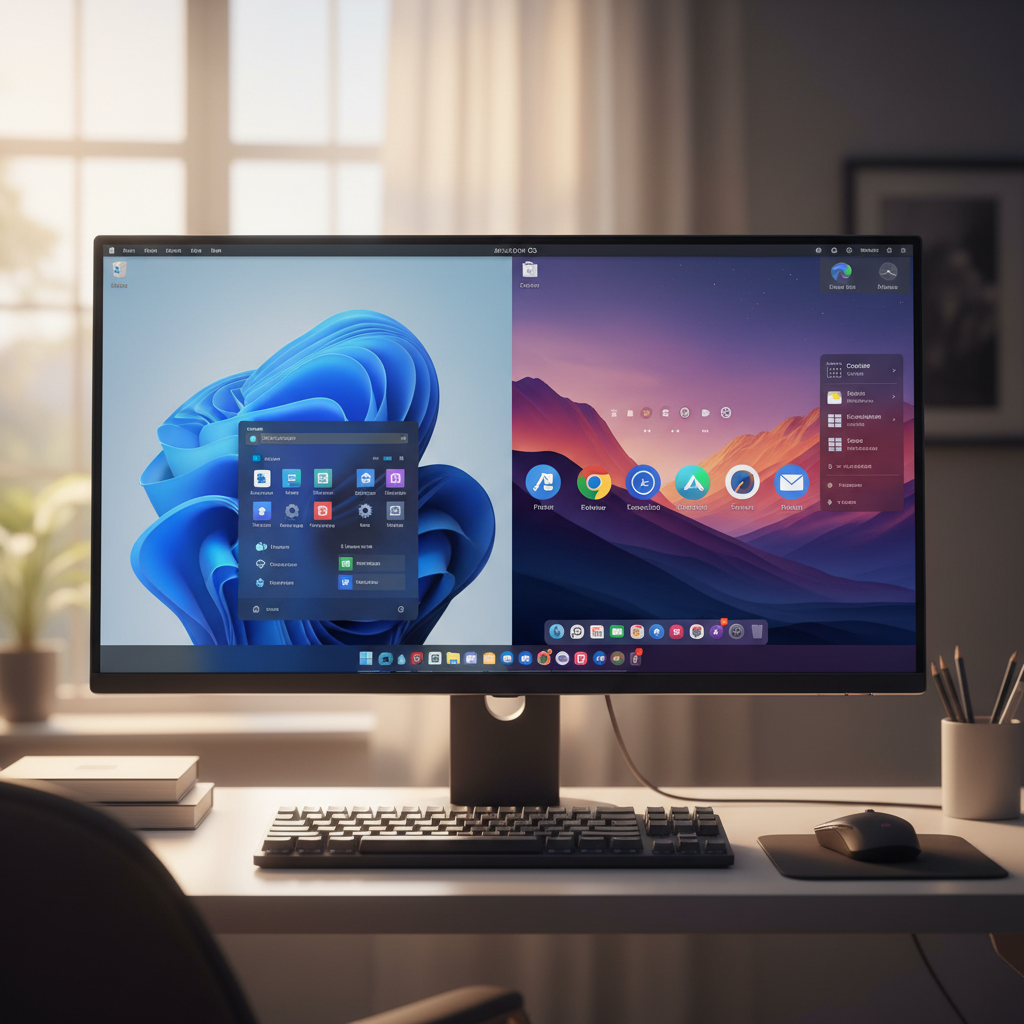
In the vast landscape of Linux distributions, Zorin OS stands out as a true gem, especially for those seeking a highly adaptable and user-friendly computing experience. It’s quickly become a favorite, praised for its incredible flexibility and the ease with which users can transform its desktop to suit their preferences. Whether you’re transitioning from Windows, macOS, or simply want a fresh take on Linux, Zorin OS empowers you to make your desktop truly yours.
Indeed, Zorin OS has seen a meteoric rise in popularity, particularly among users looking for powerful alternatives to traditional operating systems. Its latest iteration, Zorin OS 18.1, has already surpassed 3.3 million downloads within six months of its release, cementing its reputation as one of the market’s premier operating systems. It’s not just beautiful and fast; its intuitive design and deep customization options are what truly set it apart.
Unleashing Your Desktop’s Potential with Zorin Appearance
The magic behind Zorin OS’s remarkable adaptability primarily resides in a powerful built-in utility called Zorin Appearance. This isn’t just a simple theme changer; it’s a comprehensive control panel that lets you tweak nearly every aspect of your desktop’s visual and interactive elements. From switching between entire layouts to fine-tuning animations, Zorin Appearance is your gateway to a personalized computing environment.
One of its most compelling features is the “Layout” option, offering a quick way to mimic familiar desktop environments. The free version of Zorin OS provides four distinct layouts, including two classic Windows-like interfaces and two modern GNOME-inspired panel designs. This ensures a comfortable transition for newcomers, making Zorin OS feel instantly familiar.
For those who crave even more options, the Zorin OS Pro version, available for $47.99, unlocks an additional four premium layouts. These include stunning designs inspired by macOS, Windows 11, Ubuntu, and KDE Plasma, providing an unparalleled range of aesthetic choices. Regardless of your preference, Zorin Appearance ensures your desktop can reflect your unique style.
Beyond broad layouts, Zorin Appearance offers granular control over various interface elements. You can customize themes, enable or disable desktop icons, adjust window placement and advanced tiling behaviors, and even switch the titlebar button arrangement. The tool also allows you to define mouse button actions, set window focus behaviors, and select preferred fonts, giving you complete command over your desktop’s look and feel.
Deeper Customization: Beyond the Defaults
The customization journey with Zorin OS doesn’t end with Zorin Appearance; it merely begins there. Each layout can be further refined to an incredible degree, allowing for a truly bespoke experience. For instance, you can easily modify the panel’s corner radius, length, and opacity, transforming a standard layout into something uniquely yours.
For an enhanced user experience, consider enabling some of Zorin Appearance’s advanced settings. Features like Jelly Mode, Spatial Windows Switcher, Focus on Hover, and Raise Windows When Focused can dramatically improve workflow and add a touch of playful elegance to your desktop interactions. Experimenting with these options often leads to surprising and delightful discoveries.
Beyond Zorin Appearance, the built-in Extensions app opens up a world of possibilities through GNOME extensions, allowing for even deeper customization. These add-ons can introduce new functionalities or visual flair that go beyond the default settings. Some popular extensions include:
- Blur My Shell: Adds an elegant blur effect to your shell components.
- Dash to Dock: Transforms the default Dash into a customizable dock.
- Desktop Cube: A visually stunning 3D desktop switcher.
- Space Bar: Provides improved workspace management.
- AppFolders Management: Helps organize your applications into custom folders.
By leveraging these powerful tools, you can craft a Zorin OS desktop that is not only highly functional but also visually distinct and perfectly aligned with your personal computing style.
Crafting Your Perfect Zorin OS Experience
The true beauty of Zorin OS customization lies in its accessibility and the sheer breadth of options available. Whether you dedicate a few minutes or delve into hours of tweaking, the outcome is a personalized operating system that feels uniquely “you.” The platform is designed for experimentation, so don’t hesitate to try different settings and layouts.
If a particular change doesn’t quite hit the mark, simply revert it and try something new; there’s no risk involved. This flexibility empowers users to continually evolve their desktop environment, ensuring it always meets their current needs and aesthetic desires. With Zorin OS, your ideal desktop isn’t just a dream – it’s an achievable reality.
Source: ZDNet – AI
