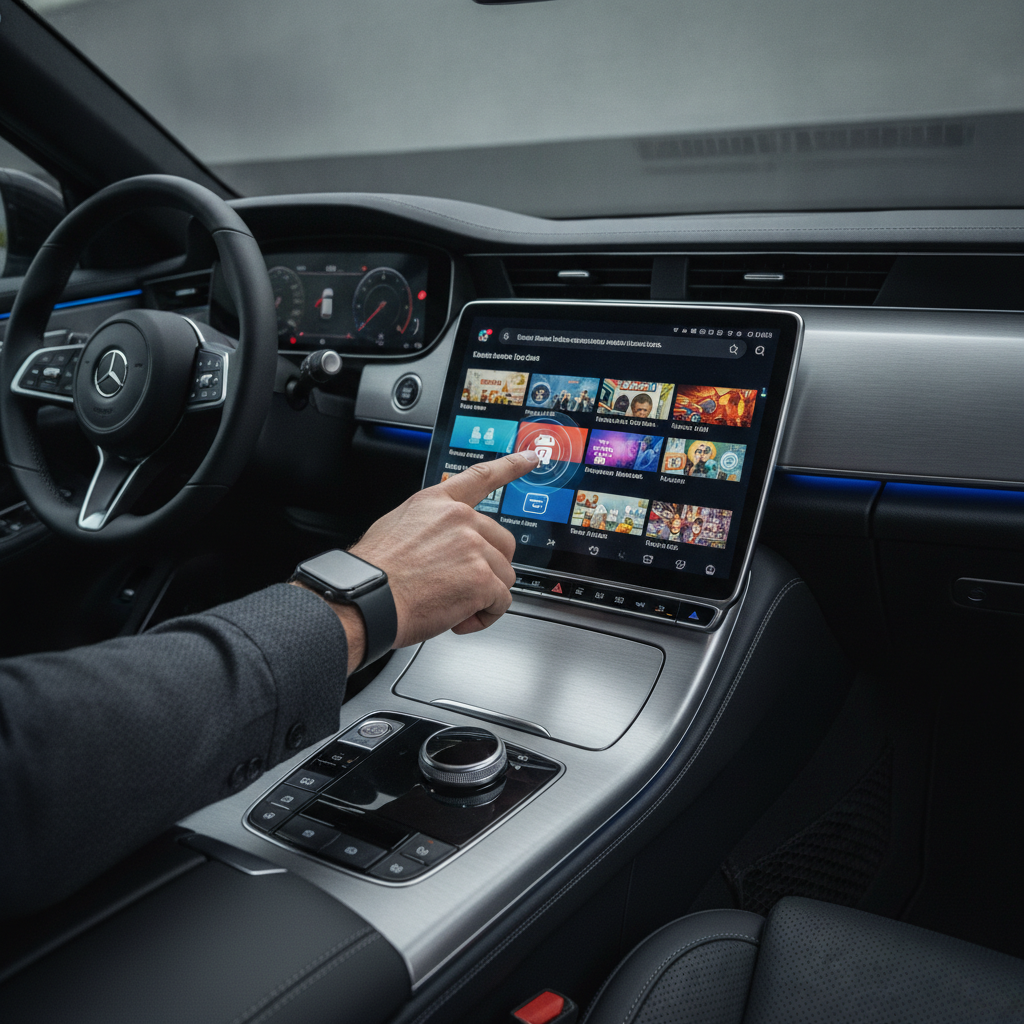
Android Auto offers incredible convenience on the road, providing essential navigation, communication, and entertainment features. However, even with its capabilities, the official Google Play Store selection for Android Auto can feel a bit restrictive. Google intentionally limits what you can do on your car’s screen, but what if you want to unlock its full potential?
This is where sideloading comes into play, allowing you to install unofficial apps that dramatically expand what your car’s infotainment system can do. Imagine watching YouTube, browsing the web, or accessing a comprehensive media player directly on your dashboard. The good news is, the process isn’t as daunting as it sounds, and even on my 2018 car’s modest screen, these apps have been a game-changer.
Unlocking Your Android Auto’s Full Potential
Before you can dive into the world of unofficial Android Auto apps, you’ll need to prepare your phone and Android Auto itself. These initial steps are crucial for enabling the installation of software from outside the official ecosystem. Once configured, using these apps will feel just as seamless as any other Android Auto application.
First, begin by unlocking developer mode on your Android smartphone. Navigate to your phone’s Settings, find the About Phone section, and then locate the Build Number. Tap it repeatedly, usually seven times, until a message confirms that developer options are now enabled.
Next, you’ll need to activate developer mode specifically for Android Auto. Open your phone’s Settings, search for and tap on Android Auto, then select “Additional settings in the app.” Scroll down to find the Version entry and tap it ten times; this will unlock developer options within Android Auto. From there, scroll further down in your settings and ensure the “Unknown sources” box is checked.
With both developer modes activated, the final setup step involves installing Android Auto Apps Downloader (AAAD). You can find this essential tool by searching online for “AAAD” and navigating to the download page. Once there, tap on “Go to Download” to get the .apk file, then install it on your phone.
AAAD acts as your gateway to the unofficial app store for Android Auto, offering a curated selection of powerful tools. While the free version allows one download every 30 days, most users will find it worthwhile to upgrade to the Pro version for a small fee of $4, which removes this limitation and provides unlimited access.
Game-Changing Unofficial Android Auto Apps
Now that your system is ready, let’s explore three incredible unofficial apps that will truly transform your Android Auto experience. These selections significantly enhance media consumption, web access, and overall utility directly from your car’s screen.
1. CarStream: YouTube in Your Car
While an official YouTube app for Android Auto is reportedly coming later this year for select car brands, CarStream delivers full YouTube functionality right now. This app mirrors the experience of the standard YouTube app on your phone, allowing you to search for videos, access your subscriptions, and even watch vertical Shorts.
The interface is impressively polished and user-friendly, making navigation and content discovery a breeze, especially with the convenience of your phone’s keyboard for typing searches. Crucially, CarStream functions even when your car is in motion, which is perfect for entertaining passengers on longer journeys (though, for safety, never watch videos while driving yourself). In fact, I often find myself preferring CarStream on my car’s screen over my phone’s YouTube app when I’m parked.
2. AA Browser: Web Surfing on Your Dashboard
By default, Android Auto lacks a dedicated web browser, but AA Browser fills this gap perfectly, providing direct internet access on your car’s display. You might initially wonder why you wouldn’t just use your phone’s browser, but AA Browser offers distinct advantages, particularly its integrated, larger-screen experience.
This app is incredibly useful for accessing services without official Android Auto support, or simply for pulling up information quickly. For instance, I’ve used it to queue up Netflix for my kids on longer trips or to access web portals that are better viewed on a larger screen than a phone. For those “just let me look that up” moments, AA Browser is incredibly convenient, offering an always-open, larger interface that beats fumbling with your phone.
3. Fermata Auto: Your All-in-One Media Hub
If you’re only going to install one unofficial Android Auto app, make it Fermata Auto. This comprehensive media toolkit is a true powerhouse, offering a vast array of features in a single, convenient package. It allows you to play locally stored videos and music, mirror your phone’s screen, and even watch live TV via IPTV links.
What makes Fermata Auto particularly impressive is its dedicated tabs for both YouTube and web browsing, which perform just as well, if not better, than the standalone apps mentioned previously. Accessing videos and songs stored on your device is incredibly straightforward, and I found setting up IPTV links to be surprisingly hassle-free. Fermata Auto effectively consolidates multiple media functions into one intuitive app, eliminating the need to switch between various programs.
Source: ZDNet – AI
