In our increasingly connected world, a stable internet connection isn’t just a convenience; it’s a necessity for both work and home. Recent extreme weather events, like the record-breaking heatwaves experienced in the UK, serve as a stark reminder of how fragile our essential infrastructure can be. Power outages and downed phone lines are becoming more common, leaving us scrambling for alternatives when the main internet goes dark.
While options like satellite internet or using your phone as a mobile hotspot are available, they often fall short for a comprehensive home or office setup. Hotspotting directly from your phone usually means reconfiguring Wi-Fi credentials across numerous devices, which is a frustrating and time-consuming task. Imagine needing to update every smart plug, security camera, and laptop with new network details every time your primary internet fails.
Why You Need a Router Internet Backup
The ideal solution for maintaining continuity is to connect a backup internet source directly to your router. This way, all your connected devices seamlessly switch over without any manual intervention, relying on the router to manage the failover. Fortunately, there are effective ways to leverage your smartphone’s mobile data as a robust backup for your home or office router.
Below, we’ll explore three primary methods to achieve this, saving the most versatile and reliable option for last. Each approach has its own requirements and benefits, catering to different router capabilities and user preferences.
Option 1: USB Tethering Your Android Phone
If your router features a USB-A port, you might have a straightforward backup option at your fingertips. This method involves simply connecting your Android smartphone directly to your router using a standard USB-A to USB-C cable.
Once connected, navigate to your Android phone’s ‘Settings,’ then ‘Network & internet,’ and finally ‘Hotspot & tethering.’ From there, toggle on the ‘USB tethering’ option. Your phone will then begin sharing its mobile data connection over the USB cable.
Many modern internet routers are smart enough to automatically detect a USB-tethered Android device as a new WAN (Wide Area Network) connection. However, some basic routers, especially those provided by ISPs, might require a manual check. You may need to log into your router’s admin panel to verify that the WAN/internet status shows as connected through the USB port.
For those with more basic routers, installing third-party firmware like OpenWrt or DD-WRT can unlock advanced features. If your router supports these custom firmware options, it can transform a simple router into a powerful internet hub, potentially enabling better USB tethering detection and functionality.
Option 2: Wi-Fi as WAN (WWAN) and the Best Option – USB-C to Ethernet Adapter
Another method, though less common, is to use your router to connect to your smartphone’s Wi-Fi hotspot. This feature, known as Wireless Wide Area Network (WWAN) or Wi-Fi as WAN, allows your router to act as a client to another Wi-Fi network, keeping your router as the central hub for all your devices.
The main challenge with WWAN is that not many consumer routers support it out-of-the-box. You’ll need to delve into your router’s admin panel or consult its manual to see if this functionality is available. Travel routers, such as those from GL.iNet (like the Beryl AX, Slate 7, or Mango models), often come with this feature built-in, making them excellent choices for portable backup solutions.
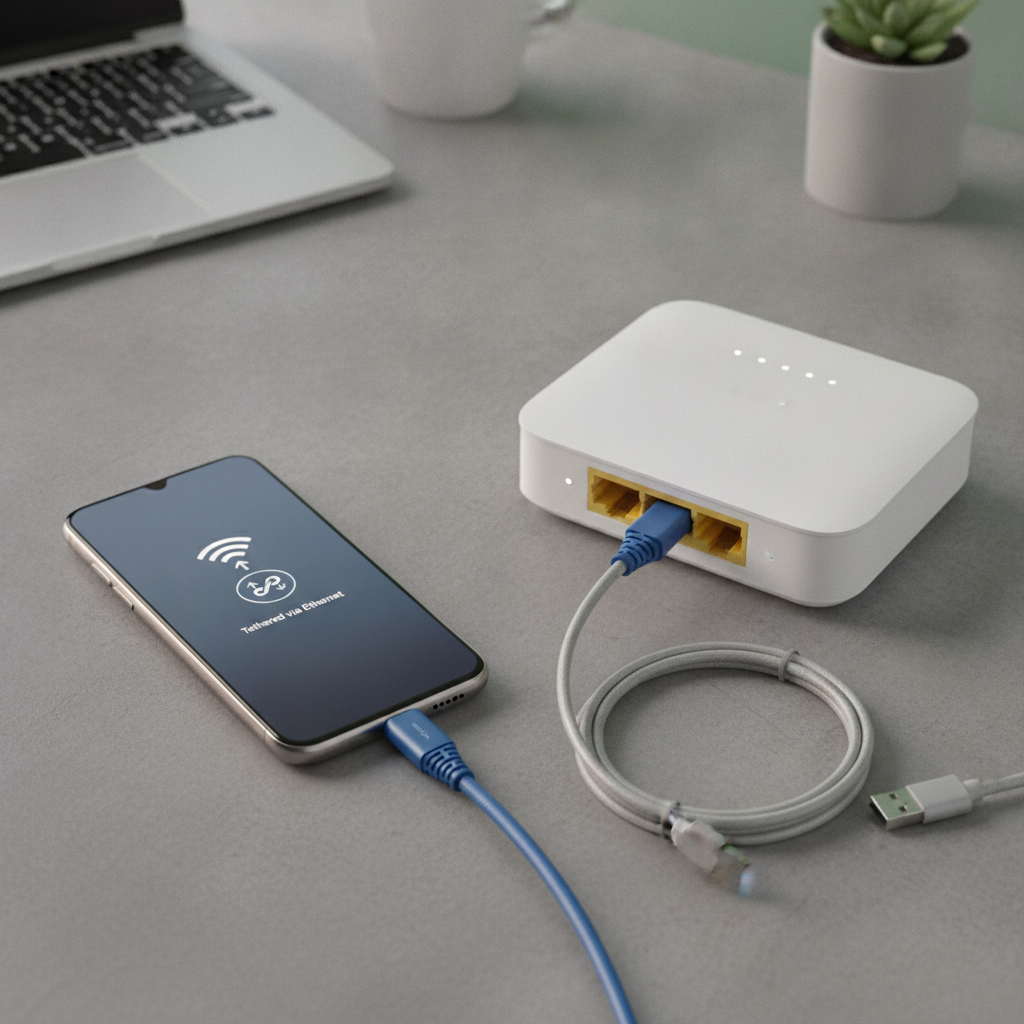
However, the most reliable and widely supported method for connecting your smartphone to your router is through a USB-C to Ethernet adapter. This approach works with virtually any router that has a WAN port, which is standard on almost all routers.
You’ll need a good quality USB-C to Ethernet adapter and a short Ethernet cable. Simply connect the adapter to your Android smartphone’s USB-C port, then run an Ethernet cable from the adapter to your router’s dedicated WAN/internet port. On your smartphone, go to ‘Settings,’ then ‘Network & internet,’ ‘Hotspot & tethering,’ and finally toggle on ‘Ethernet tethering.’
Android typically detects the adapter automatically, and your mobile data connection will be shared over Ethernet without further configuration. When selecting an adapter, it’s wise to invest in one from reputable brands like Anker, Ugreen, or Plugable, generally priced from $10-$20. Avoid very cheap, no-name adapters, as their reliability and compatibility can be spotty.
Important Considerations and iPhone Challenges
While these methods provide excellent backup solutions, it’s crucial to consider power management for your smartphone. When using USB tethering, your phone might charge over the USB cable connected to the router. However, with an Ethernet adapter, your phone won’t charge, meaning you’ll need to schedule regular charging or use a USB-C multi-port hub with Power Delivery to keep both the phone and the hub powered simultaneously.
For iPhone users, the situation is a bit more complicated due to Apple’s proprietary protocols. While an iPhone can share its cellular data via USB tethering (Personal Hotspot enabled), your router must specifically support iPhone tethering. Some routers, like those from GL.iNet, handle this well, but many others do not. You might need custom firmware like OpenWrt and additional software packages, which can be complex to set up and may require re-pairing after a phone reboot.
The Wi-Fi as WAN method should work with an iPhone’s hotspot just as it does with Android, assuming your router supports WWAN. However, Ethernet tethering is not supported on iPhones, limiting this highly effective backup option for Apple device owners. For robust network continuity, especially for non-iPhone users, having an old Android phone with an active data plan dedicated to this purpose can be a smart, reliable investment.
Source: ZDNet – AI
