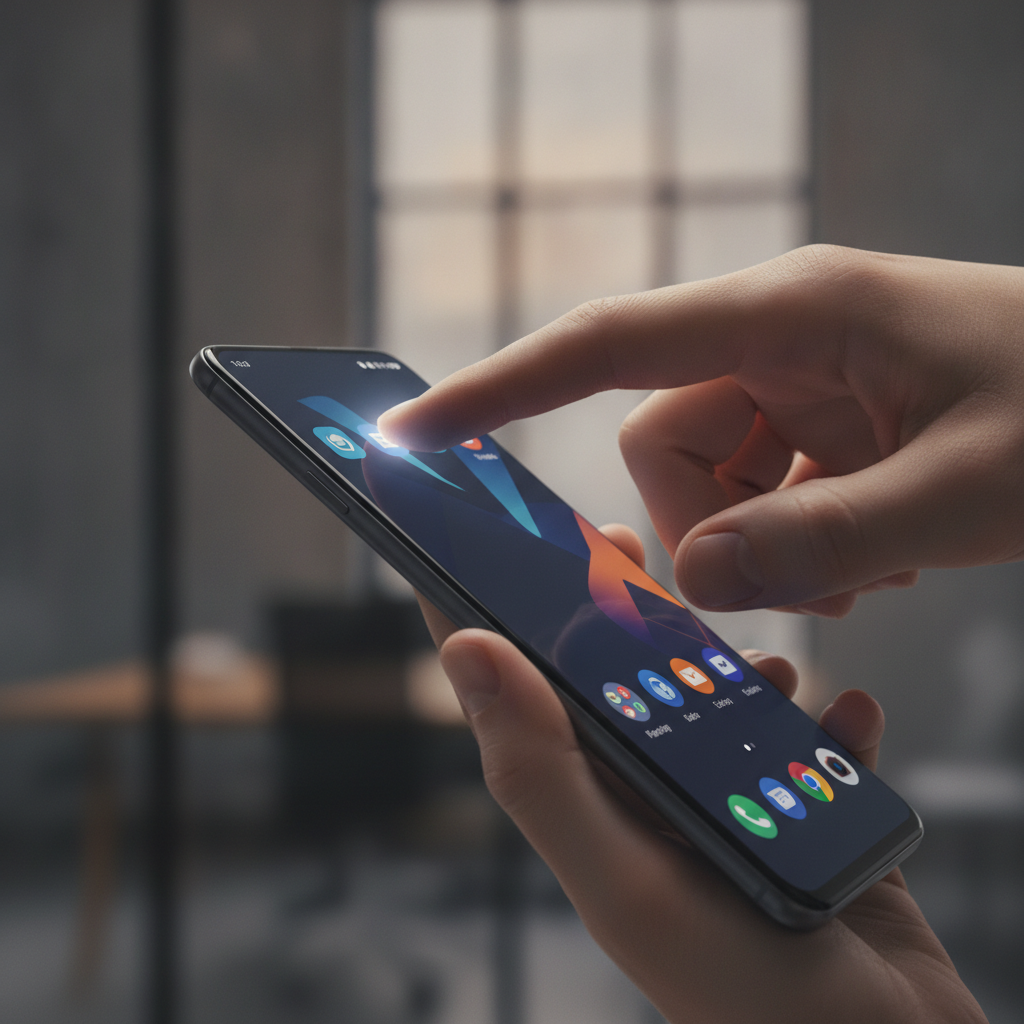
Ever found yourself performing finger acrobatics just to reach the top corner of your massive smartphone screen? Navigating today’s large Android devices with just one hand can be a real challenge, often requiring an awkward grip or a second hand for simple tasks. Fortunately, there’s a brilliant solution that makes one-handed smartphone use dramatically easier, and it’s called Quick Cursor: One-Hand Aid.
This ingenious Android application acts as a virtual mouse pointer, allowing you to comfortably interact with your entire screen from a small, accessible area. Whether you’re struggling with dexterity, have smaller hands, or simply prefer the convenience, Quick Cursor is a game-changer for mobile accessibility and everyday phone use. It promises to simplify your smartphone experience, letting your fingers breathe a sigh of relief.
Reaching Every Corner with Ease
Accessibility is a cornerstone of modern technology, addressing diverse needs from vision and hearing to mobility. For many, physical mobility can be a significant barrier, making it difficult to tap small icons or reach far-flung corners of a large display with a single hand. This is precisely where an app like Quick Cursor steps in, offering a much-needed solution.
At its heart, Quick Cursor introduces a virtual mouse pointer that you control from a designated “trigger” zone on your screen, typically along one of the bottom edges. This pointer then allows you to interact with any element on the display, regardless of its position. It’s an incredibly intuitive way to bridge the gap between your thumb’s natural reach and your phone’s expansive display.
How Quick Cursor Transforms Your Android Experience
The magic of Quick Cursor lies in its simplicity once you get the hang of it. By dragging your finger within the trigger zone, you can move the virtual pointer across your screen; dragging upwards extends its reach further up the display, while dragging downwards keeps the pointer interacting with lower elements. This dynamic control makes interacting with apps, notifications, and settings incredibly fluid.
After installing Quick Cursor from the Google Play Store, you might find the initial setup wizard a bit overwhelming, but don’t be deterred. The wizard, while comprehensive, doesn’t always convey the elegant simplicity of the app’s functionality upfront. Stick with it, and you’ll quickly realize how powerful and straightforward this tool truly is.
Setting up your trigger area is key to personalizing Quick Cursor for your unique needs. You can define its position along any edge of your device and adjust its length, from a small section to almost the entire side. The app provides a helpful visual overlay during this process, ensuring you know exactly how your changes will appear on screen.
A pro tip for optimal performance is to configure your trigger in a location free from app launchers or widgets. This prevents any accidental interactions or conflicts that could hinder the app’s expected functionality. Furthermore, Quick Cursor is versatile enough to be configured for both portrait and landscape modes, adapting seamlessly to your phone’s orientation.
Customization and Practical Application
Beyond the trigger area, Quick Cursor offers a host of customization options to fine-tune your experience. You can adjust the cursor’s speed, its active area, alignment relative to the trigger, and even the distance it maintains from your finger. While the default settings often work perfectly, don’t hesitate to experiment until the cursor feels exactly right for your personal workflow.
Using Quick Cursor in practice is incredibly simple: you swipe inward from your chosen trigger area to reveal the virtual cursor. Once visible, guide your finger to position the cursor over the desired element—be it an app icon, a button, or a text field—and then simply tap your screen. You can even use it to effortlessly pull down and interact with your Notification Shade, all from one comfortable position.
While this approach might feel a little unusual at first, the learning curve is surprisingly short. Most users find themselves navigating their Android device with newfound ease within mere minutes of trying it. It truly transforms your phone into a device that perfectly caters to one-handed interaction, even on the largest screens.
It’s rare to stumble upon an accessibility app that delivers so effectively on its promise, but Quick Cursor genuinely does. This app provides immense value for individuals facing mobility, agility, or other accessibility challenges. It’s also fantastic for anyone with smaller hands struggling to manage today’s ever-growing smartphone displays.
The free version of Quick Cursor provides all the essential features you need to get started and benefit from its core functionality. Should you desire advanced capabilities like trigger actions, tracker actions, a floating tracker, and more granular customization, the Pro version is available as a one-time in-app purchase for just $5.99, or $1.99 per year. Give Quick Cursor a try; your fingers and your thumbs will undoubtedly thank you!
Source: ZDNet – AI
