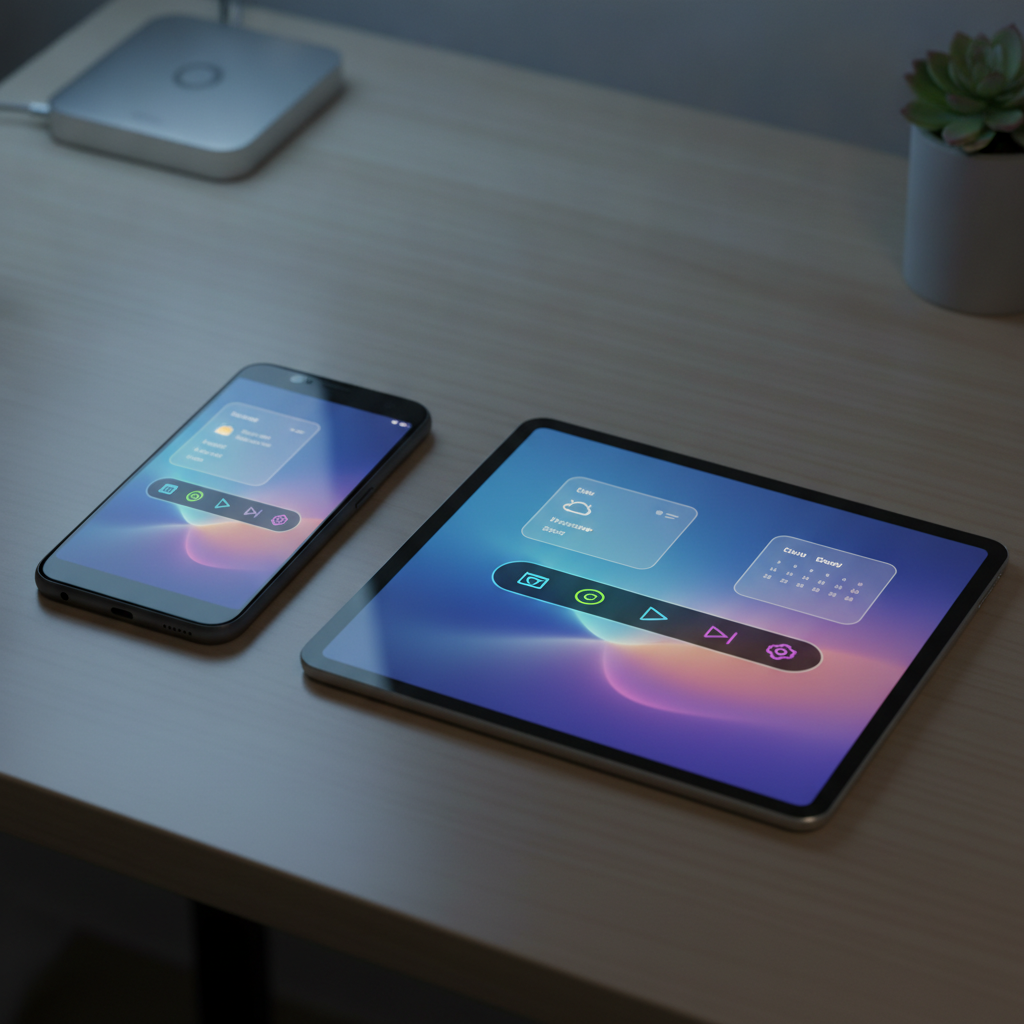
Ever wished your Android phone or tablet could offer a more desktop-like experience, perhaps even mimicking the sleek interface of Windows 11? For a long time, this seemed like a distant dream, but now, that wish has become a remarkable reality. Enter HyperDroid, an innovative Android launcher that transforms your mobile device into something truly reminiscent of a full-fledged desktop operating system.
Upon installing HyperDroid, you’ll be genuinely surprised by its accuracy and polish. It takes the familiar Android environment and overlays it with an incredibly convincing Windows 11-style UI, complete with many features you’d expect from a traditional desktop. This isn’t just a superficial skin; it’s a re-imagining of how you interact with your device.
Unleash the Windows 11 Look on Your Android
The moment HyperDroid launches, the transformation is striking. Everything from the distinct taskbar at the bottom to the meticulously designed desktop menu and system tray is incredibly well-executed, making your Android device feel like it just rolled out of Redmond. It’s a comprehensive visual overhaul that truly captures the essence of Windows 11.
You’ll find familiar elements like desktop launchers for your favorite apps, an integrated search function, and a system tray that provides quick access to settings and notifications. It genuinely offers the look and feel of a powerful desktop environment, all while running smoothly on your Android device. The attention to detail, right down to the signature blur effects, is simply commendable.
While impressive on a phone, HyperDroid truly shines on a larger screen, making it an exceptional choice for Android tablets. On a tablet, the expanded real estate allows the desktop metaphor to flourish, providing ample space to arrange app icons, add various widgets, and customize the UI to your heart’s content. Accessing quick settings from the system tray feels intuitive and efficient, mirroring a traditional PC workflow.
Smooth Performance with a Minor Hiccup
Beyond its aesthetics, HyperDroid delivers outstanding performance. Animations are fluid, app launches are swift, and navigating the transformed interface feels incredibly responsive. If you’re accustomed to any modern desktop UI, you’ll find HyperDroid immediately intuitive and straightforward to use, making it a refreshing change from typical mobile launchers.
However, during testing, one minor issue did emerge concerning widgets. On occasion, widgets would incorrectly report a lack of internet access or misidentify themselves, sometimes appearing as generic news feeds. The consistent workaround for this was simply to restart HyperDroid after adding a new widget, which usually resolved the glitch immediately.
Despite this small quirk, the overall stability and smoothness of HyperDroid were consistently impressive. The developer’s dedication to replicating the Windows 11 experience, even nailing subtle visual elements like the iconic blur effect, is evident throughout. For those seeking a fresh and desktop-centric approach to their Android device, this launcher offers a genuinely compelling alternative.
Installing HyperDroid and Making it Default
Getting HyperDroid up and running on your device is a breeze. Simply head over to the Google Play Store, search for “HyperDroid,” and tap “Install.” The application will download and set itself up, ready for you to explore its unique interface.
Once installed, you can launch HyperDroid to test it out. If you decide you want this unique desktop experience as your everyday launcher, the process for setting it as default is a little different from the usual Android method. Follow these specific steps to ensure HyperDroid becomes your primary interface:
- Open the HyperDroid Settings app (look for a gear icon within the HyperDroid panel).
- Navigate to Settings > System > Default Launcher.
- Tap the On/Off slider to “Enable as a launcher.”
- Then, tap “Choose as default” and select HyperDroid from the list of available launchers.
Remember, you must first enable HyperDroid within its own settings before it can be chosen as your device’s default launcher. This ensures a seamless transition to its desktop-like environment.
Optimizing Your HyperDroid Experience
While HyperDroid functions on phones, it truly comes into its own on larger Android tablets. On a phone, the display can feel a bit cramped for a desktop UI, and it currently lacks support for portrait mode, which can be a significant limitation for phone users. These factors make it slightly less ideal for smaller screens.
However, as a tablet interface, HyperDroid is outstanding. If you prefer the layout and functionality of a traditional PC desktop, then this launcher will be a highly welcome addition to your Android tablet. It bridges the gap between mobile convenience and desktop familiarity, making your tablet feel more versatile than ever before.
It’s crucial to understand that HyperDroid is a launcher, not a complete operating system conversion. Your Android device will not magically run Windows apps or support all Windows peripherals. Instead, it meticulously transforms the visual and interactive layer of your Android experience, making it feel remarkably like using Windows 11. This distinction is key to managing expectations.
Final Verdict
For Android users who appreciate the aesthetics and workflow of Windows 11, HyperDroid offers an unparalleled customization option. It’s an engaging and functional alternative to standard mobile interfaces, providing a refreshing change of pace for those who crave a desktop environment on their portable devices.
If you’re looking to revolutionize the way you interact with your Android phone or tablet, especially if you’re a fan of the Windows 11 UI, then HyperDroid comes highly recommended. Give it a try and discover how seamlessly your mobile device can adopt a sophisticated, desktop-inspired personality.
Source: ZDNet – AI
